






Van sales · direct sales · cash van

Van sales and direct sales software in Tunisia

From the warehouse to the money collected, with no paper and no surprises.

The truck leaves loaded, the driver sells on a mobile terminal that prints the ticket, even without network, and in the evening the stock and the cash are counted. You know what went out, what was sold, what is left on board and who owes you how much.

Real screenshots of the software, demo data.

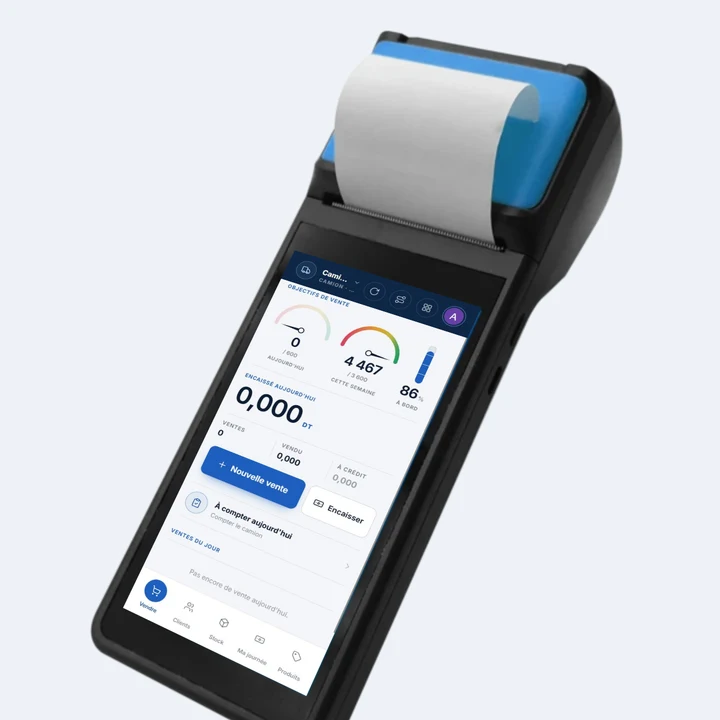
Driver's mobile terminal with a ticket printer, on the Lexa sales screen: targets for the day and the week, stock on board
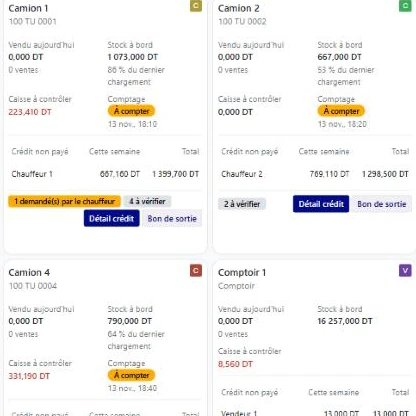
Truck cards at the office in Lexa: sold today, stock on board, cash to check and count
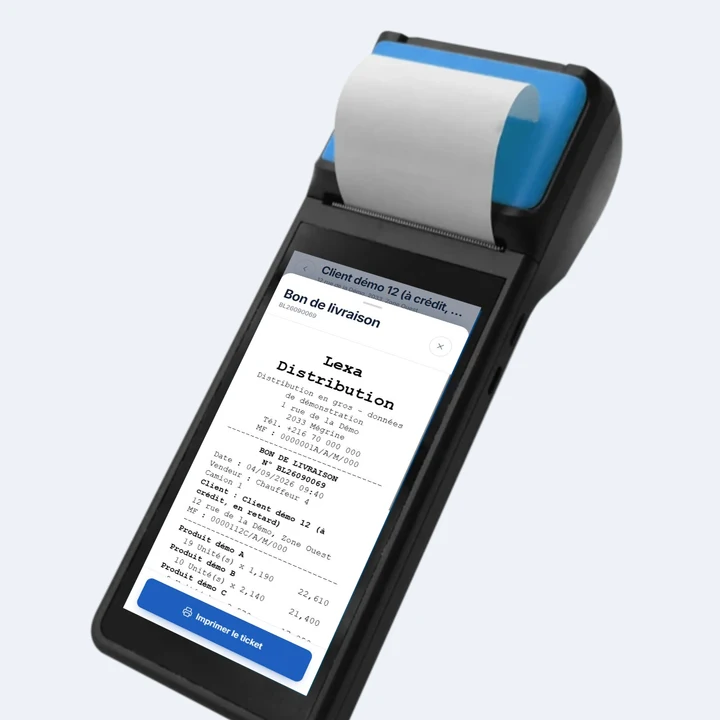
Mobile terminal showing the « delivery note » ticket of a sale before printing

In brief

Lexa ERP for van sales is management software built for Tunisian wholesalers and distributors who sell from their trucks, which the trade also calls direct sales from the truck or cash van. The driver works on a mobile terminal with a built-in ticket printer (a mobile POS, sometimes called a handheld terminal or PDA), or on a phone. He requests his loading on it, and the office approves it. At the customer's, he sells in three steps, takes payment in cash or by cheque, or leaves the sale on credit, and prints a « delivery note » ticket; sales continue without network and go to the office as soon as the network returns. In the evening, the truck is counted with a reason for every discrepancy, and the office checks the cash. The office then follows receivables by age, invoices in the Tunisian format, keeps the treasury and sees each truck against its target. Lexa ERP is published in Tunis by Lexa Technologies; its offers and their prices are published on lexa.tn/prix.

Direct sales or pre-sales: the difference

Direct sales (van sales)Pre-sales
The goods during the visitOn board the truckAt the warehouse
DeliveryImmediately, at the customer'sLater, on a round
The stock to trackEach truck'sThe warehouse's
The moneyCollected on the spot, or left on creditCollected on delivery
In Lexa ERPThe driver's sales screen, on his mobile terminalThe order is entered at the office, then delivered on a round

This page presents direct sales from the truck. Orders taken at the office and delivered on a round are described on the page of the distribution and delivery round software.

A day of van sales, from the warehouse to the office

Every step of the day leaves a trace: what is loaded, sold, collected, counted and handed in.

  1. Loading

    at the warehouse

  2. Sale

    at the customer's

  3. Payment

    on the spot

  4. Counter

    same screen

  5. Count

    on return

  6. Office

    in the evening

Every evening, five questions

Every distributor asks them at the end of the day. Without a tool, the answers arrive the next day, on paper, and are not always right.

  • How much did each truck sell?

    Every truck and every counter has its card: sold today, stock on board, cash to check, unpaid credit. The dashboard shows each truck against its target.

  • What is left on board?

    Every sale leaves the truck's stock. The evening count confirms what is left, with a reason for every discrepancy.

  • Who owes me what?

    Receivables are sorted by customer and by age, and each customer's account statement can be printed.

  • Is the cash right?

    The office counts each driver's bag against what the screen recorded. A discrepancy requires a note.

  • What needs ordering?

    Every product has its minimum stock. The « To restock » list shows those that are below it, and the supplier order starts from there.

Guided tour, screen by screen

A truck's day in Lexa, from the morning loading to the evening dashboard. Click a screenshot to enlarge it.

Real screenshots from the Lexa ERP demo. The companies, customers and amounts shown are fictitious.

Step 1

A mobile terminal that prints the ticket

The driver has everything in one hand: a mobile terminal with a built-in ticket printer, which the trade also calls a mobile POS, a PDA or a mobile till. The Lexa sales screen brings together sales, customers, truck stock and the driver's day on it, and the « delivery note » ticket comes out of the device at the customer's. The same screen works on a phone connected to a 58 or 80 mm ticket printer, and at the warehouse counter.

  • Sales, payment, stock and counting on a single device
  • Built-in ticket printer: the delivery note comes out at the customer's
  • Barcode scanning with the camera or a scanner
  • The same screen on a phone and at the counter

The sales screen
Mobile terminal with a built-in ticket printer, on the driver's Lexa sales screen
The ticket, ready to print
Mobile terminal showing the « delivery note » ticket of a sale, ready to print
The evening count
Mobile terminal on the truck count screen, with the reason for a discrepancy

Step 2

Truck stock: the driver requests, the office approves

On his terminal, in the Stock tab, the driver requests what he wants to load, what he is taking back to the warehouse or what is defective on board, broken or expired. Nothing moves until the office has approved: the request waits in its list. In the other direction, a loading prepared by the office is accepted on the terminal. The truck leaves with its goods-out note: everything on board, the vehicle, the date, the destination, and space for the signature and the stamp.

  • Load, unload, defective: three requests from the terminal
  • Every request waits for the office's approval
  • A loading prepared by the office is accepted on the terminal
  • Goods-out note printed from the truck's record
At the office, the request awaits approval.
List of truck loadings at the office, with the driver's request to approve
The goods-out note that leaves with the truck.
A truck's goods-out note: vehicle, date, destination, items on board, signature and stamp
The driver's request
Stock tab on the driver's terminal: Load, Unload and Defective buttons and a loading request awaiting the office

Step 3

A sale in three steps, even without network

The screen that greets the driver shows him his sales for the day and the week against the target set by the office, and what is left on board. Then three steps: the customer (a known customer, the walk-in customer or a new customer), the items, searched for or scanned with the terminal's camera or a scanner, and confirmation. Prices are shown inclusive of all taxes and the driver cannot change them. The sale leaves the truck's stock. If the network drops, he carries on working offline: sales, payments and tickets stay on the terminal, numbered separately, and go to the office when the network returns, once each.

  • Two gauges: sales for the day and the week against the target
  • Known customer, walk-in customer or new customer
  • Barcode scanning with the camera or a scanner
  • Prices inclusive of all taxes, which the driver cannot change
  • Without network, sales continue and are sent when the network returns
The target in plain sight
Driver's sales screen: target gauges for the day and the week, share of stock still on board, money collected today
He picks the items
New sale, Items step: the truck's products, quantities available and a scan button
He confirms
New sale, confirmation step: lines, amount before tax, VAT and total

Step 4

Cash, cheque or credit, and the delivery note prints

Once the sale is confirmed, the customer pays in cash or by cheque, or the sale stays on credit on his account. For a cheque, the driver enters the number, the bank and the due date, which the office will find when the time comes to cash it. The customer receives a « delivery note » ticket, printed on a 58 or 80 mm printer, with VAT by rate, what has already been paid and what remains to be paid. The driver does not invoice: the office issues the invoice afterwards.

  • Cash, cheque or sale on credit
  • Cheque recorded with its number, bank and due date
  • « Delivery note » ticket printed on the spot, in 58 or 80 mm
  • On the ticket: VAT by rate, already paid, remaining to pay
The cheque, with its due date
Cheque payment sheet: amount, cheque number, bank and due date
The customer's ticket
« Delivery note » ticket on screen before printing: salesperson, truck, customer and items

Step 5

Before he walks in, the driver knows what the customer owes

In the customer list, each customer appears with what he owes, with overdue amounts in red. The customer's page gives the balance, what is overdue and for how many days, and the sales still to be paid. From the same page, the driver opens the statement, calls or starts the directions. When the customer pays, the « Collect a payment » button settles the oldest debt first.

  • Balance and days overdue visible before the sale
  • Statement, call and directions from the customer's page
  • The payment settles the oldest debt first
Who owes
Customers tab on the terminal: each customer with what he owes, overdue amounts in red
The customer's account
Page of a credit customer: balance, overdue amount, Call, Directions and Statement buttons and delivery notes to be paid

Step 6

The counter sells on the same screen

At the warehouse, the counter salesperson uses the same screen as the drivers: same customer, same items, same ticket. The only difference is that he sells from the warehouse's stock. His « My day » tab tells him what he has sold, what he has collected by payment method and what he must hand in to the office.

  • The same screen as the trucks, on the warehouse's stock
  • « My day »: sales, collected, left on credit
  • The amount to hand in to the office, by payment method
My day
« My day » tab of the counter salesperson: collected today, sales and the amount to hand in to the office

Step 7

In the evening, the truck is counted

At the end of the day, the driver counts his truck on the terminal. The screen starts from what the system expects; for each discrepancy he must say why: broken or damaged, expired, missing without explanation, counting or picking error, found. At the office, these losses are valued at cost and can be read by reason, by truck and by product.

  • Count pre-filled with the expected quantity
  • A reason for every discrepancy
  • Losses valued at cost
  • Analysis by reason, truck and product
At the office, losses by reason.
Chart of stock losses by month and by reason at the office
Why this discrepancy?
Truck count on the terminal: expected quantity, counted quantity and the reason for the discrepancy to choose

Step 8

The driver's cash is checked at the office

Every truck and every counter hands its money in to the office. The office counts what is in the bag, cash and cheques, against what the screen recorded during the day. If there is a discrepancy, the reason must be written down before validating. Once validated, the money goes into the central cash; cash that has not yet been checked stays flagged in the list.

  • Cash and cheques counted against what was recorded
  • A discrepancy requires a note before validation
  • Validated money goes into the central cash
  • Cash still to be checked stays flagged
One check per truck and per counter.
List of cash checks: point of sale, salesperson, cash recorded and cash counted
A discrepancy, and its note.
Cash check for a truck: cash recorded, cash counted, discrepancy and explanatory note

Step 9

Who owes what, and since when

The office sees everything that is owed, customer by customer, sorted by age: what has been delivered but not yet invoiced, what is not yet due, then 1 to 30 days, 31 to 60, 61 to 90 and more than 90 days overdue. For each customer, the account statement prints with every document, its due date and its delay.

  • Receivables by customer and by age
  • Delivered but not yet invoiced, counted separately
  • Customer account statement, on your company's letterhead
Receivables by customer and by age.
« Who owes what » table: amounts owed by customer, split between not due, overdue brackets and to be invoiced
The account statement.
Customer account statement: documents, dates, due dates, days overdue and total due by bracket

Step 10

The office invoices, in the Tunisian format

The office invoices afterwards, one invoice per customer, from the list of what has been delivered and not yet invoiced. The invoice carries a number per month, VAT by rate, FODEC, stamp duty, the amount in words and the company's bank details (RIB). The quotation, order form, delivery note and bill of exchange come out in the same style, and everything is displayed before being printed.

  • One invoice per customer, from what is delivered and not yet invoiced
  • VAT by rate, FODEC, stamp duty, amount in words
  • Documents numbered by month
  • Preview before printing
What is delivered and still to be invoiced.
List of orders to invoice at the office: customer, counter or truck channel, salesperson and amount
The invoice.
Demo invoice: VAT by rate, stamp duty, net payable and amount in words

Step 11

The treasury in cards, and the forecast treasury

The company's money is read in cards: the bank, the central cash, the trucks' cash, the counter's cash, and the cheques and bills in hand. Cheques and bills of exchange received wait for their due date; on that day, the office marks them as validated, or as unpaid if they come back. The forecast treasury starts from the bank and the cash, adds the cheques in hand and what customers owe, and takes away the cheques issued and the suppliers' invoices.

  • One card per account: bank, cash, cheques and bills
  • Cheques and bills of exchange to validate by due date
  • Transfers between accounts and expenses in the same place
  • Forecast treasury: what will come in, what will go out
One card per account.
Treasury in cards: bank, cheques and bills to cash, truck cash, counter cash, central cash, customer credit
Cheques and bills of exchange, by due date.
List of cheques and bills of exchange to validate, sorted by due date
The forecast treasury.
Forecast treasury: in the bank and in cash, to receive, to pay and forecast amount

Step 12

Every truck, every salesperson, at a glance

Every truck and every counter has its card: sold today, stock on board, cash to check, unpaid credit. The office also sees where each truck is (GPS tracking). The « Wholesale » dashboard sums up the period for management: sales, margin, money collected, what customers owe, delivered and still to invoice, stock lost and treasury, by day, week, month or year, compared with the previous period. Further down: each truck against its target, and the office's « To do » list. The salespeople report sets side by side the share of the target, the money collected, the balance due, the stock lost and the cash discrepancy.

  • One card per truck and per counter
  • Truck positions seen from the office (GPS)
  • Sales, margin, collections, receivables and treasury on one dashboard
  • Each truck against its target
  • « To do » list: requests, cash checks and counts pending
One card per truck and per counter.
Point-of-sale cards: for each truck and counter, sold today, stock on board, cash to check and unpaid credit
The management dashboard.
« Wholesale » dashboard: sales, margin, collected, receivables, delivered to invoice, stock lost, treasury
Each truck against its target.
Dashboard: sales by channel, gauges of the trucks against their target and « To do » list
The salespeople report.
Salespeople report: sales, target reached, margin, collected and balance due by driver and by salesperson

Step 13

Everyone sees what concerns them

The driver has only his terminal, with his sales screen. The counter salesperson has the same screen. The warehouse handles receipts, transfers and truck loadings. The office does all the day-to-day work (sales, invoicing, payments, purchasing, stock, checks, dashboard, treasury) without touching the settings, which remain with the administrator. Management can keep a copy of the database and go back to it with « Back up and restore ».

  • Five roles: administrator, office, warehouse, driver, counter salesperson
  • The driver sees only his sales screen
  • The settings remain with the administrator
  • « Back up and restore » for management
Back up and restore.
« Back up and restore » screen for the database, reserved for management

Everything you need, in one tool

Ten modules sharing the same database: an item, a customer or a truck exists only once.

  • Sales screen

    Sales, payment, customers and stock on the driver's terminal.

  • Truck stock

    Loadings approved by the office, goods-out note, stock on board.

  • Tickets and documents

    Delivery note in 58 or 80 mm, statements, invoices.

  • Counting and losses

    Evening count, a reason per discrepancy, losses at cost.

  • Cash control

    The bag counted against the screen, a note for every discrepancy.

  • Who owes what

    Receivables by age, cheques and account statement.

  • Invoicing

    VAT by rate, FODEC, stamp duty, numbers by month.

  • Treasury

    Bank, cash, cheques and bills of exchange, forecast treasury.

  • Purchasing

    Minimum stock, list to restock, supplier's invoice.

  • Dashboard

    Sales, margin, targets per truck, « To do » list.

Why Lexa for van sales

Four concrete differences when it's time to choose.

  • The office stays in control

    A loading does not leave without approval, the driver does not change prices, and the money only enters the central cash after it has been checked. What happens on the road is decided and verified at the office.

  • Every discrepancy has an explanation

    A shortage in the truck has its reason, a cash discrepancy has its note, and losses are valued at cost by truck and by product. You know where the goods go, and what it costs.

  • Sales continue without network

    On the road, the network drops. Sales, payments and tickets stay on the terminal and go to the office as soon as the network returns, once each. Loadings, counts and creating a new customer require the network.

  • No cost per user or per truck

    Lexa ERP is paid for once, at a fixed price: adding a driver or a truck does not change the price. Lexa sets the software up with your products, your customers and your trucks, trains your drivers and stays reachable in French and Arabic.

Pricing: published on our pricing page

The van sales software is part of the Lexa ERP offers, at a fixed price in dinars excluding VAT, with no cost per user or per truck. A distributor usually falls under the Pro offer, with the sales screen on a mobile terminal, treasury, purchasing and margin included. What each offer includes and its price are published on our pricing page (in French).

Hardware (mobile terminals, ticket printers) is not included. Needs specific to your business (documents to adapt, connectors, labels) are added as special features, priced before work starts, after a free audit of your flows. Annual maintenance is optional.

Frequently asked questions - van sales software

The questions business owners in this trade ask us most often.

Van sales software is management software built for distributors who sell from their trucks: it tracks each truck's stock as a warehouse, records every sale and every payment on the driver's terminal, has the truck counted on its return and reconciles the cash at the office. Lexa ERP for van sales covers these steps, then receivables, invoicing, treasury and the dashboard, in a single database.

See it with your own figures

Thirty minutes to review your flows and see Lexa on your business. Free audit, no commitment, reply within 24 working hours.

See also: The whole distribution and logistics sector · all solutions by trade

Illustrations: Microsoft Fluent Emoji, MIT licence.